
What You Need:
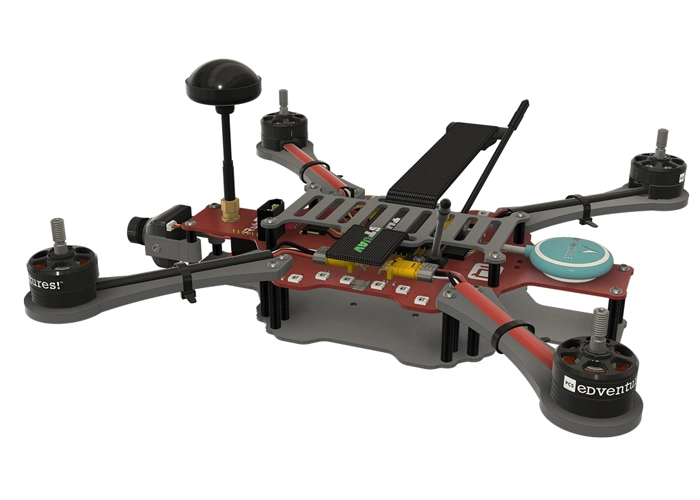
RubiQ 2.0
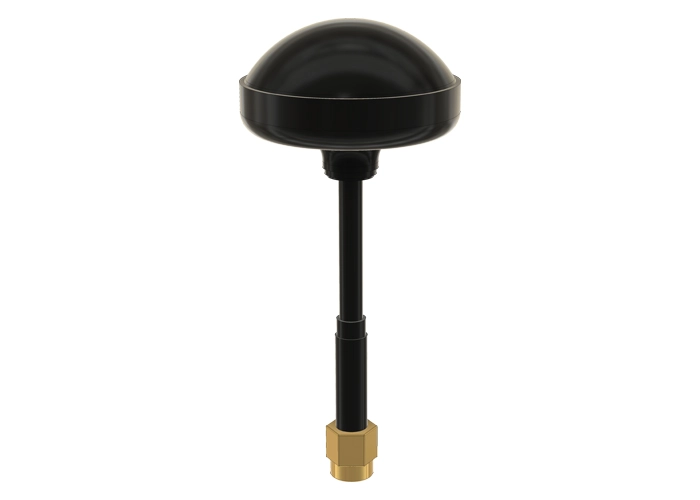
Antenna
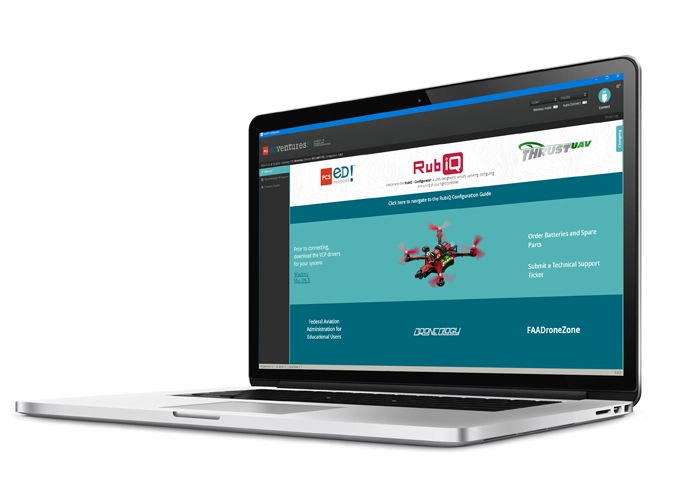
RubiQ Configurator
USB Cable
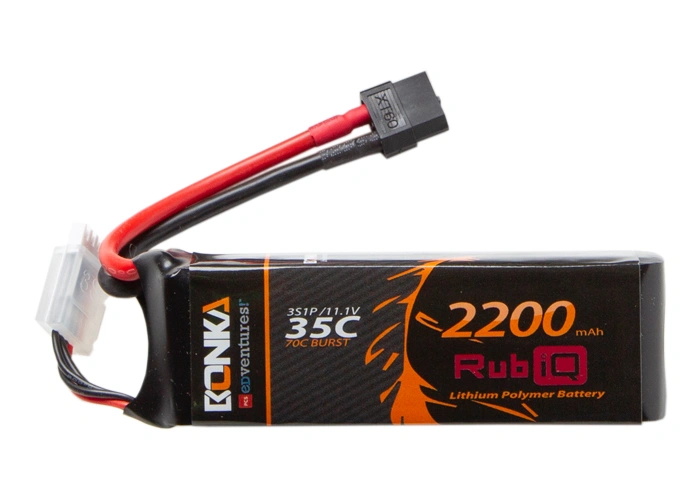
LiPo Battery
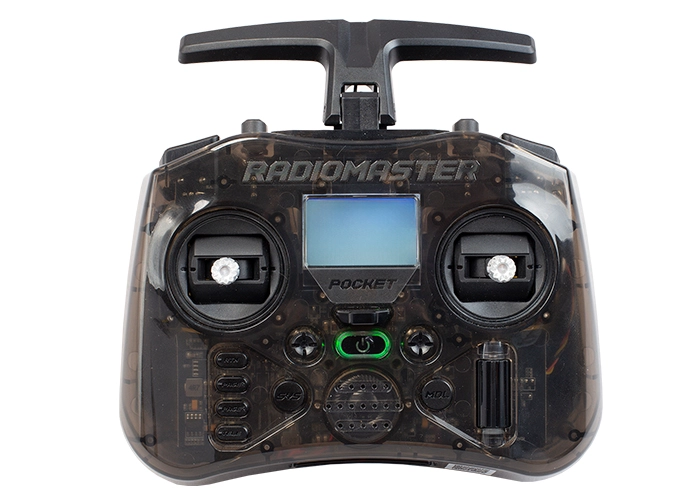
Radiomaster Pocket
Steps:
WARNING! Remove props and attach the antenna before verifying channel mapping.
In a flight simulator, a pilot only needs two joysticks to control the on-screen drone—everything else is already taken care of by the virtual flight program. In real life, a number of other switches are needed to fly your drone. You’ll need these to set the flight mode, activate safety features and arm or disarm the drone—incredibly important features of safe piloting, both for spectators and RubiQ. These switches on the radio controller are configured in the RubiQ Configurator.
The recommended switch inputs and functions for the Radiomaster Pocket are:
- AUX 1/Channel 5: SA (Arm/Disarm)
- AUX 2/Channel 6: SB (Flight Mode)
- AUX 3/Channel 7: SC (Position Hold and Return to Home)
- AUX 4/Channel 8: SD (Beeper)
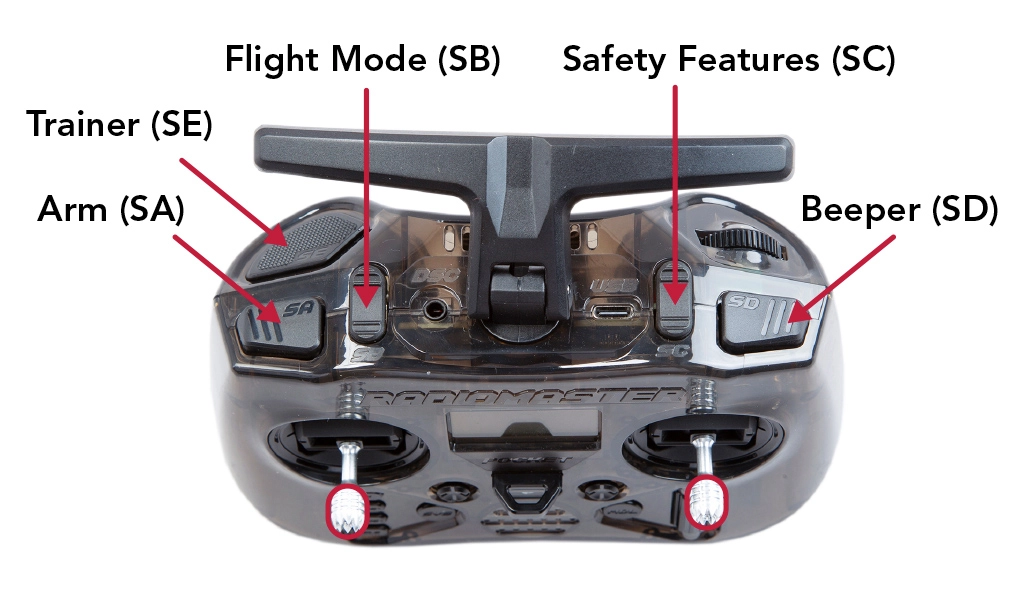
Do not make any adjustments to settings other than those described in our documentation. Radio controllers purchased elsewhere are not supported, unless told otherwise by the PCS Edventures support team.
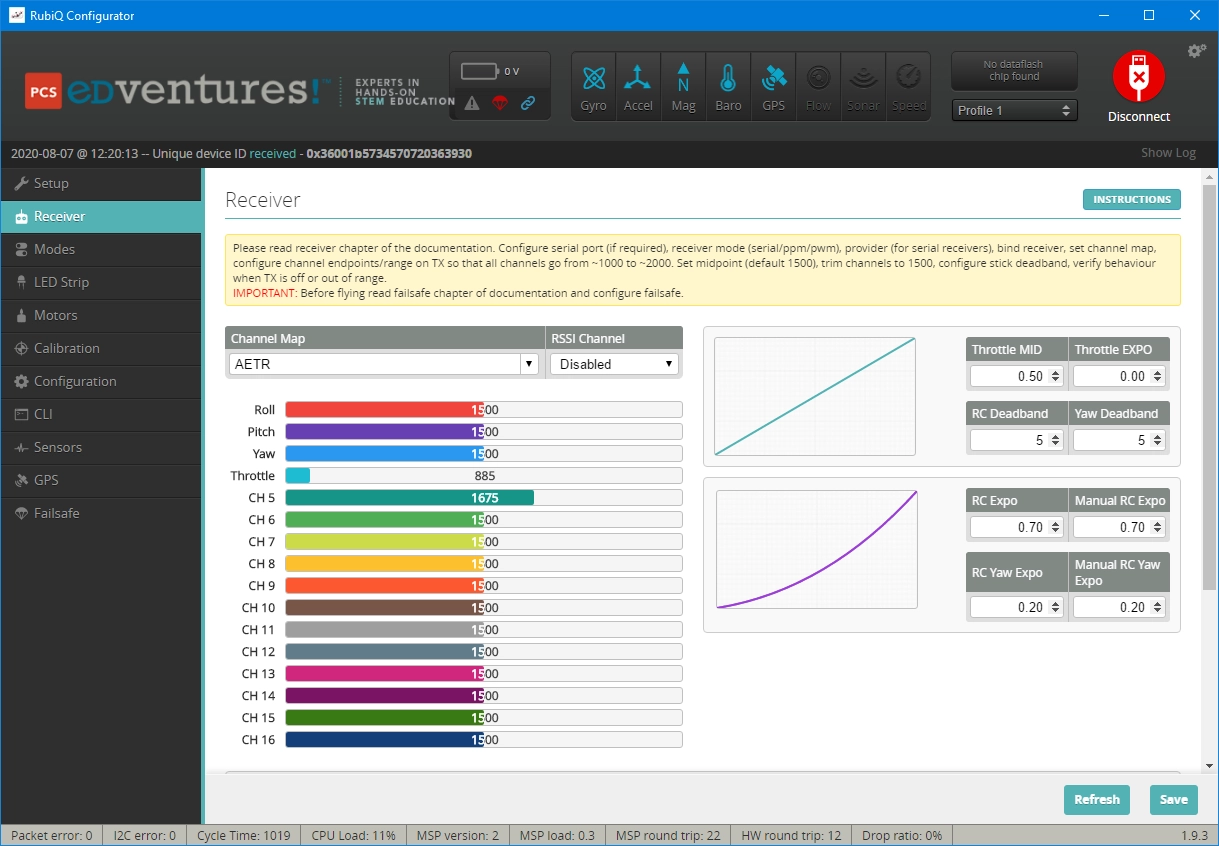
The SA switch on the radio should control the AUX 1/CH 5 bar. This will Arm and Disarm the drone.




Troubleshooting:
If the channels aren’t mapped correctly, the radio may need to be reflashed to the original settings or manually reprogrammed. Ask your instructor to contact PCS Edventures support if you have difficulty with the mapping.