
RubiQ Configuration Troubleshooting

Configuration:
Visit the Download Configurator or Download INAV step of your configuration guide, which includes step-by-step instructions and additional troubleshooting steps.
Ensure that you follow the instructions for your operating system, either Windows or Mac.
Please download using the provided links to ensure the software is compatible with RubiQ.
Visit the Connect to Configurator or Connect to INAV step of your configuration guide, which includes step-by-step instructions and additional troubleshooting steps.
Visit Step 1: Bind the RX of your configuration guide, which includes step-by-step instructions and additional troubleshooting steps.
Most likely, your bind was not successful. Head back to Step 1 of the Configuration Guide, run through the binding process again, and look for the troubleshooting tips at the bottom of the page.
Visit the Verify RX Channels step of your configuration guide, which includes step-by-step instructions and additional troubleshooting steps.
Head to Step 4 of the Configuration Guide to ensure your switches were configured correctly. Troubleshooting steps can be found at the bottom of the page.
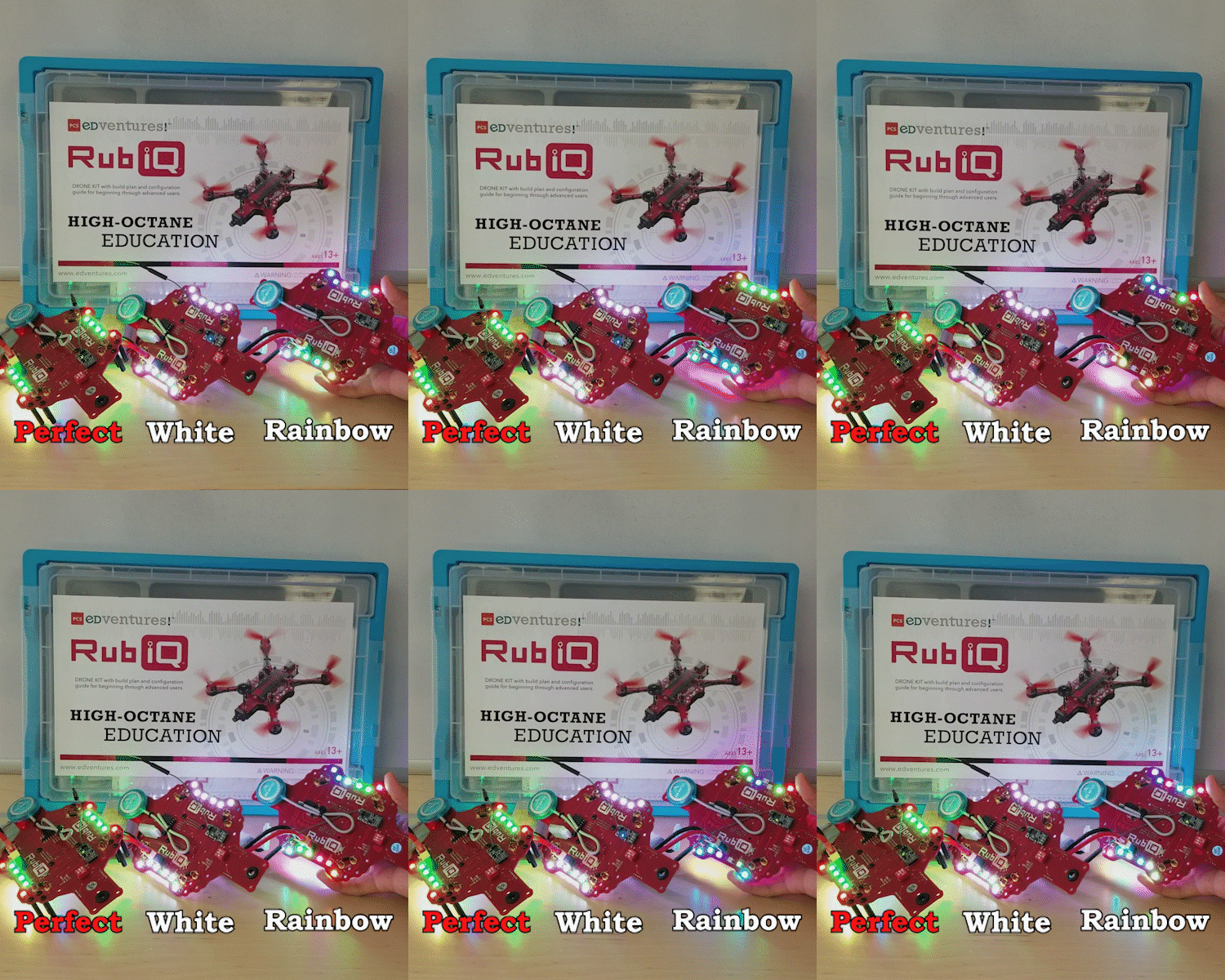
]If your LEDs are flashing rapidly, exhibiting rainbow colors or have gone completely white, then Houston, we have a problem — your PCB is malfunctioning.
First, revisit Step 5 of the Configuration Guide. Troubleshooting steps can be found at the bottom of the page.
Educators, if your PCB continues to malfunction, contact us and we’ll help get you back in the air.
Navigate to Step 6 of the Configuration Guide for complete troubleshooting steps.
RubiQ’s arms may have been installed incorrectly. Head to Step 6 of the Configuration Guide for complete troubleshooting steps.
Head to Step 8 to Calibrate the Accelerometer. Troubleshooting steps can be found at the bottom of the page.
You only need to recalibrate the compass if you take RubiQ to a different city, reset her firmware or notice that she is having trouble with the Return to Home Safety feature.
Head to the Pre-Flight Check step to learn how to calibrate RubiQ’s compass.
At the end of a successful Configuration, the pre-arming checks in the Setup tab will have all categories showing a green check mark except for “Navigation is safe.” This is because RubiQ comes with GPS lock enabled, which means she won’t fly without first connecting to seven satellites, something she can only do while out at the flight field. Once she’s locked onto the satellites, “Navigation is safe” will give you the green light.
Be sure you are dragging the bar to the very top and very bottom of the slider in one move a piece. If you release the bar part of the way down, the ESC’s will be improperly configured.
The 360ControllerInstall.dmg file from this GitHub page allows full functionality for Mac users with Xbox style game controllers.
Airborne:
Have you completed configuration?
Please ensure you have completed all nine steps of configuration guide, along with the pre-flight checks.
RubiQ cannot be armed or fly unless you have fully completed the configuration process.
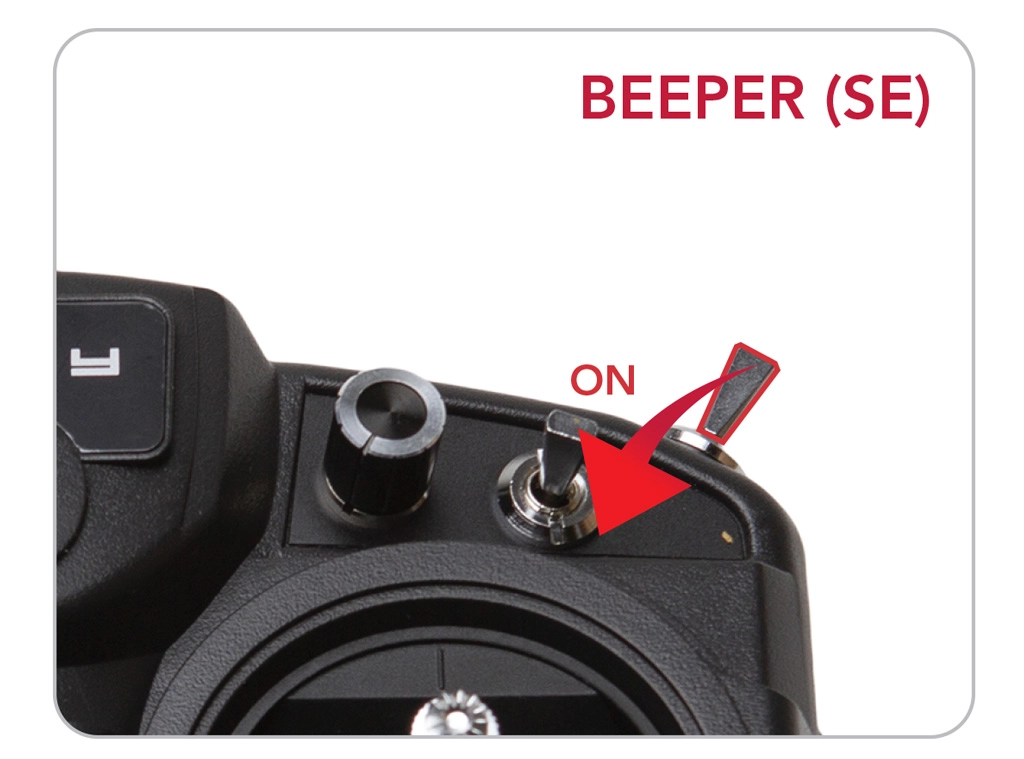
Make sure the drone is bound to the radio by flipping the Beeper.
If the beeper beeps, then RubiQ is bound but not Arming.
- Be sure the master/main radio controller has switches in the correct position for Return to Home, Angle Mode, etc.
- Verify the channel mapping using Step 3 of the configuration guide.
If the beeper doesn’t beep, then:
- A.) The drone and radio need to be bound. Head back to Step 1 of the configuration guide.
- B.) The drone or radio batteries are low or dead. The batteries need to be fully charged prior to flight.
- C.) The radio switches may not have been configured. Revisit Steps 2-4 of the Configuration Guide and the included troubleshooting steps.
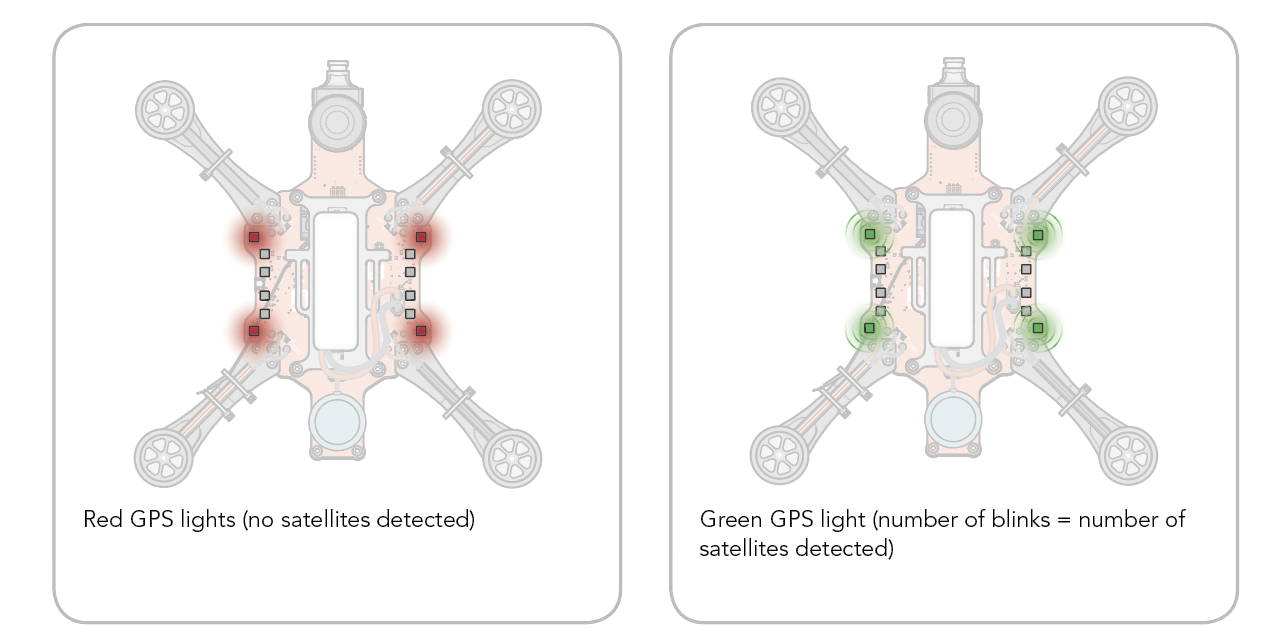
Check the GPS indicator lights.
Since GPS Lock is enabled, Rubi will not arm unless she’s connected to 7 or more satellites and has obtained 3D lock. Because satellite signals are blocked inside, the drone won’t be able to arm until you go outside.
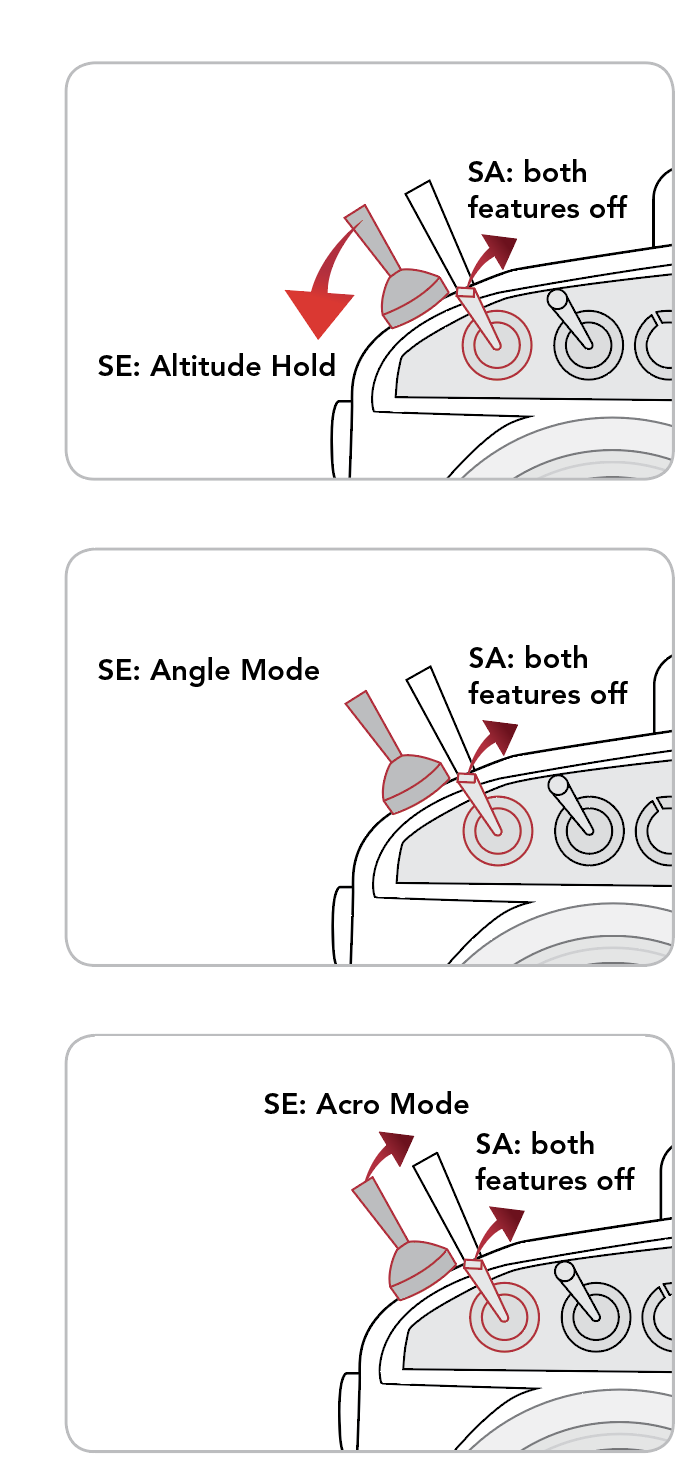
Make sure both Position Hold and Return to Home are deactivated, since either one will prevent RubiQ from arming.
Make sure both the Compass and Accelerometer are calibrated. Connect to the configurator and review the Pre-Arming Checks in the Setup tab.
At the end of a successful Configuration, these pre-arming checks will have all categories showing a green check mark except for “Navigation is safe.”
Adjust the channel on the goggles. The name of the game is matching frequencies. Use the chart below to determine the position of the VTX dip switches. These dip switches can be found immediately behind the VTX antenna. It is a red box with three white switches.
Make sure the camera is plugged into the PCB. Please note that the black wire (ground/GND) is positioned towards the inside of the RubiQ chassis as shown in the picture below.
Be sure the goggles are connected correctly to the power source and that they are charged. Some versions of Discover Drones come with goggles that use an external battery. Please be sure to check the amount of power in the battery before flight by using the included battery charger. For goggles with an internal battery, you may check the amount of power by turning them on and looking for the battery symbol in the upper right corner of the screen.
Post-Flight:
CAUTION! Disarm the drone before beginning inspection.
Disarm the drone, then perform a post-flight inspection.
- Check the LED’s for any warning messages, then disconnect the battery. Inspect the LiPo battery for any serious physical damage, such as punctures or puffiness, which would require replacing the battery.
- Remove all props and check for any that are bent, nicked or broken. These will need to be replaced before the next flight.
- Check that all exposed wires are intact. If any have been nicked, wrap them with electrical tape and order replacement parts.
- With the hex driver, confirm that screws are still firmly attached and tighten any that feel loose.
- Inspect RubiQ’s other physical components, including:
- Arms, PDB, Frame and Camera Mount: Look for cracks or other signs of a hard impact.
- Camera, VTX Antenna and VTX: make sure the SMA connection to the antenna is still snug, that the VTX is still connected and fully seated and with the props still removed, plug in the battery to make sure the FPV goggles are still receiving video feed from the camera.
- Motors: with the props still removed, slowly spin the motors using the radio controller or the Master Control in INAV’s Motor tab. Use your hand to gently feel for any free spinning motors. There should be no rough spots or squeals.
- Charge the batteries and securely re-attach props and batteries before next flight.
Replacement parts can be purchased from the PCS Edventures website.
Make sure Angle Mode is engaged to ensure self-leveling.
Recalibrate the gyro sensor by setting the drone on a flatter surface and plugging the battery in again.
Check the prop orientation.
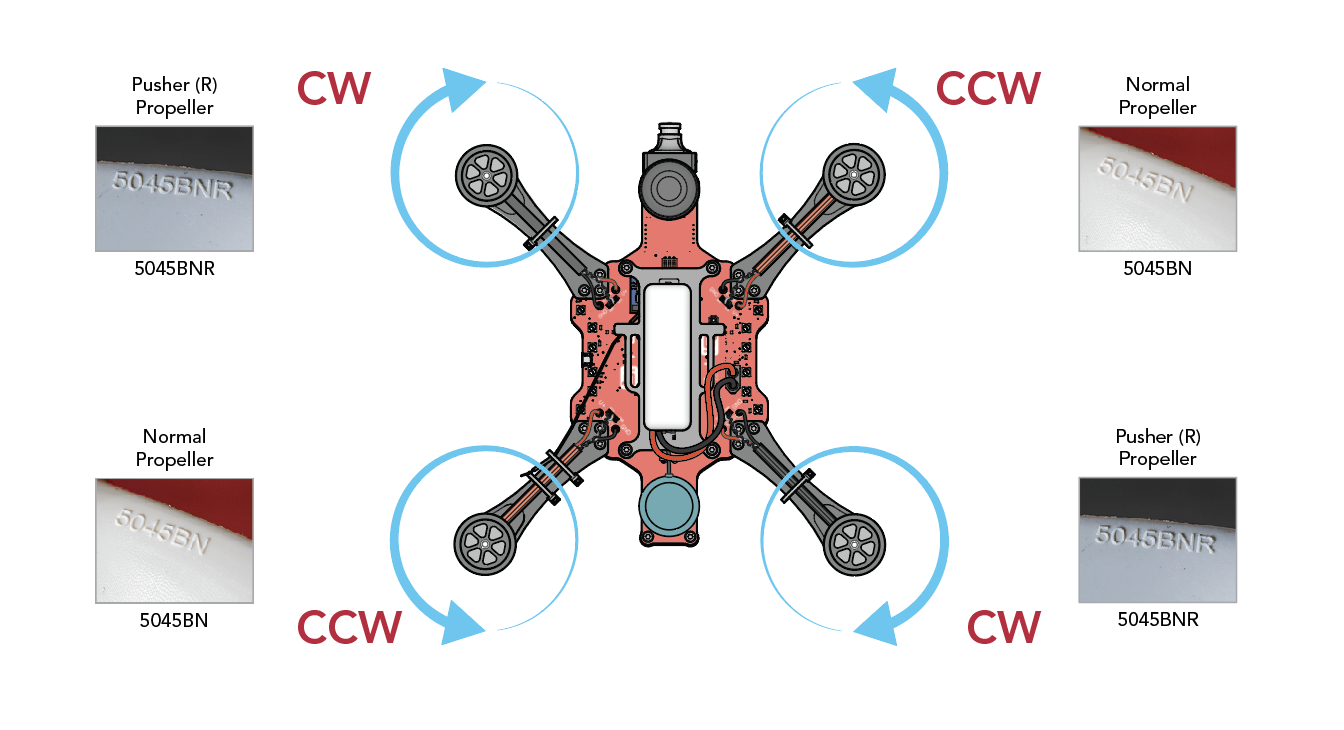
Check the motor/ESC orientation in Step 6 of the Configuration Guide.
Check all screws and make sure the hardware is tight on each arm.
Recalibrate the accelerometer using Step 8 of the Configuration Guide.
Check the magnetic declination using Step 9 of the Configuration Guide.
Inspect the motors for nicks or severed wires and replace if needed.
“Toilet-bowling” is usually caused by a miscalibrated compass. Run through the compass calibration and check the magnetic declination in the configurator.
Beeps:
This happy tone will only sound if RubiQ is stationary and has locked onto at least 7 satellites. With 3D-Lock established, RubiQ is ready for flight.
Depending on the conditions, it may take several minutes to achieve 3D-lock.
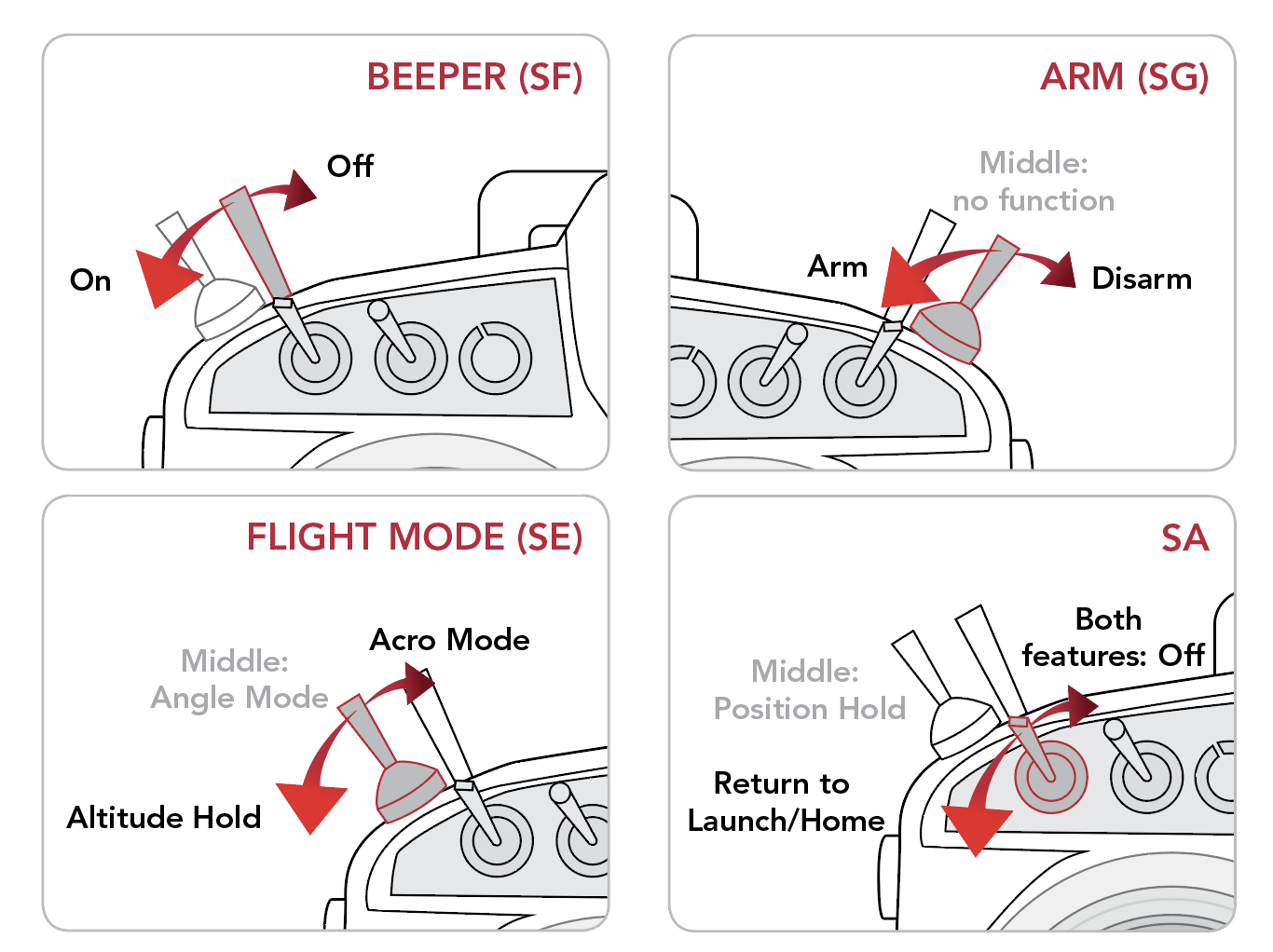
The SF switch on the Taranis controls RubiQ’s beeper function. The beeper function can be used to find RubiQ when she cannot be seen. It’s also a great way to check if RubiQ is bound to the Taranis.
If your inner warning lights flash blue, stop flying immediately. Disarm RubiQ, and unplug the battery.
To narrow down your issue, connect RubiQ to the configurator and review the hardware component bar at the top of the page.
If your GPS icon shows red, the issue will generally resolve itself after the battery has been disconnected. If any of the other icons show red, there is likely an issue with the flight controller.
Educators, if the problem persists after reconnecting the battery, please contact us for further assistance.
Disconnect the USB cable from RubiQ. The tone she makes is only a warning that the battery has been disconnected.
Calibrating the ESC’s sets the maximum and minimum throttle values. The happy tones let you know that the calibration was successful.
The inactivity alarm is triggered when the drone is connected to power but the RX is not receiving commands. To get the beeping to stop, unplug and replug the battery back into RubiQ.
This alarm sounds when RubiQ loses contact with the radio. Turning off the radio before unplugging the battery after a flight will also trigger this alarm — just unplug the battery.
The Low Battery Warning is a steady beep which triggers when the battery voltage drop below 3.5V per cell. The warning LEDs will also blink red. The beeping becomes more intense if the voltage continues to drop.
Listen for the steady beep and look for your warning LEDs to flash red.
Three beeps heard immediately after powering up the board mean that the gyroscope calibration has completed successfully. INAV calibrates the gyro automatically upon every power-up. It is important that RubiQ stay still until the three beeps sound, so that gyro calibration isn’t thrown off. If you move the copter significantly during calibration, INAV will detect this, and will automatically restart the calibration once the copter is still again. This will delay the “three beeps” tone. If you move the copter just a little bit, the gyro calibration may be incorrect, and the copter may not fly correctly.
The tone heard at the end of the GPS search indicates 3D Lock has been established.
Blinks:
RubiQ’s outer LEDs show her current communications with satellites. Look to these to learn when RubiQ is ready for flight, or why she cannot achieve lift-off.
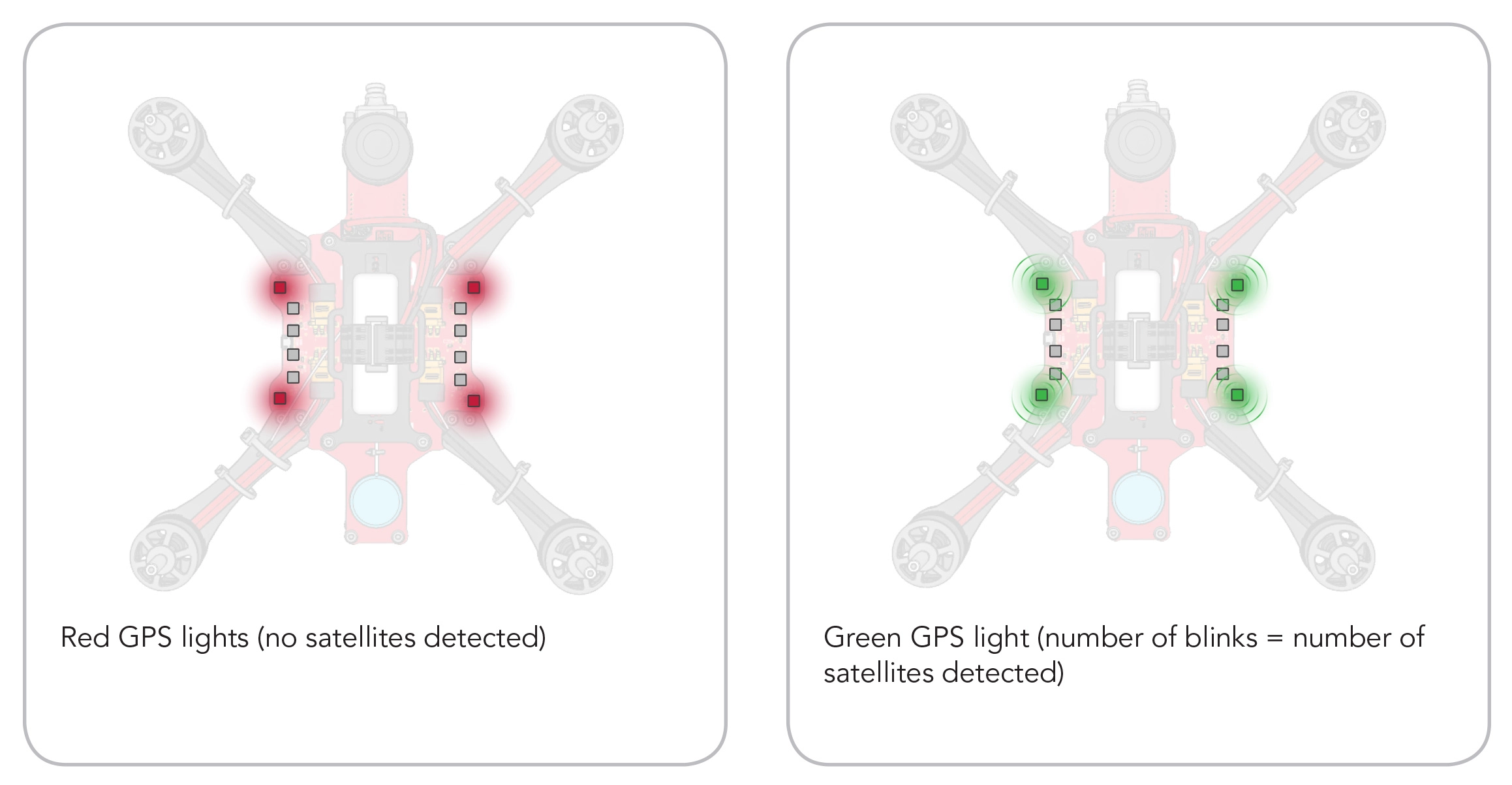
- Red LEDs: No satellites are detected
- Green LEDs: Satellites are detected
- 7 Green Flashes: Ready for 3D Lock
Red LEDs: No Satellites Detected
All four corner LEDs are red. Head outside to an open area clear of trees, buildings and overhangs to be able to fly.
Green LEDs: Connecting to Satellites
Green LEDs mean RubiQ is communicating with satellites. Count the number of flashes from these corner LEDs to learn how many satellites your drone has locked-on to. RubiQ needs to lock onto at least 7 satellites to be able to fly. When RubiQ’s GPS lights have flashed green at least 7 times, listen for her to indicate that 3D lock has been established. This happy tone will only sound if RubiQ is stationary and has locked onto at least 7 satellites. With 3D Lock established, RubiQ is ready for flight.
Depending on the conditions, it may take several minutes to achieve 3D lock.
RubiQ’s four middle LEDs signal whether or not she is armed. Look to these to distinguish if she is ready for flight, or locked in place.
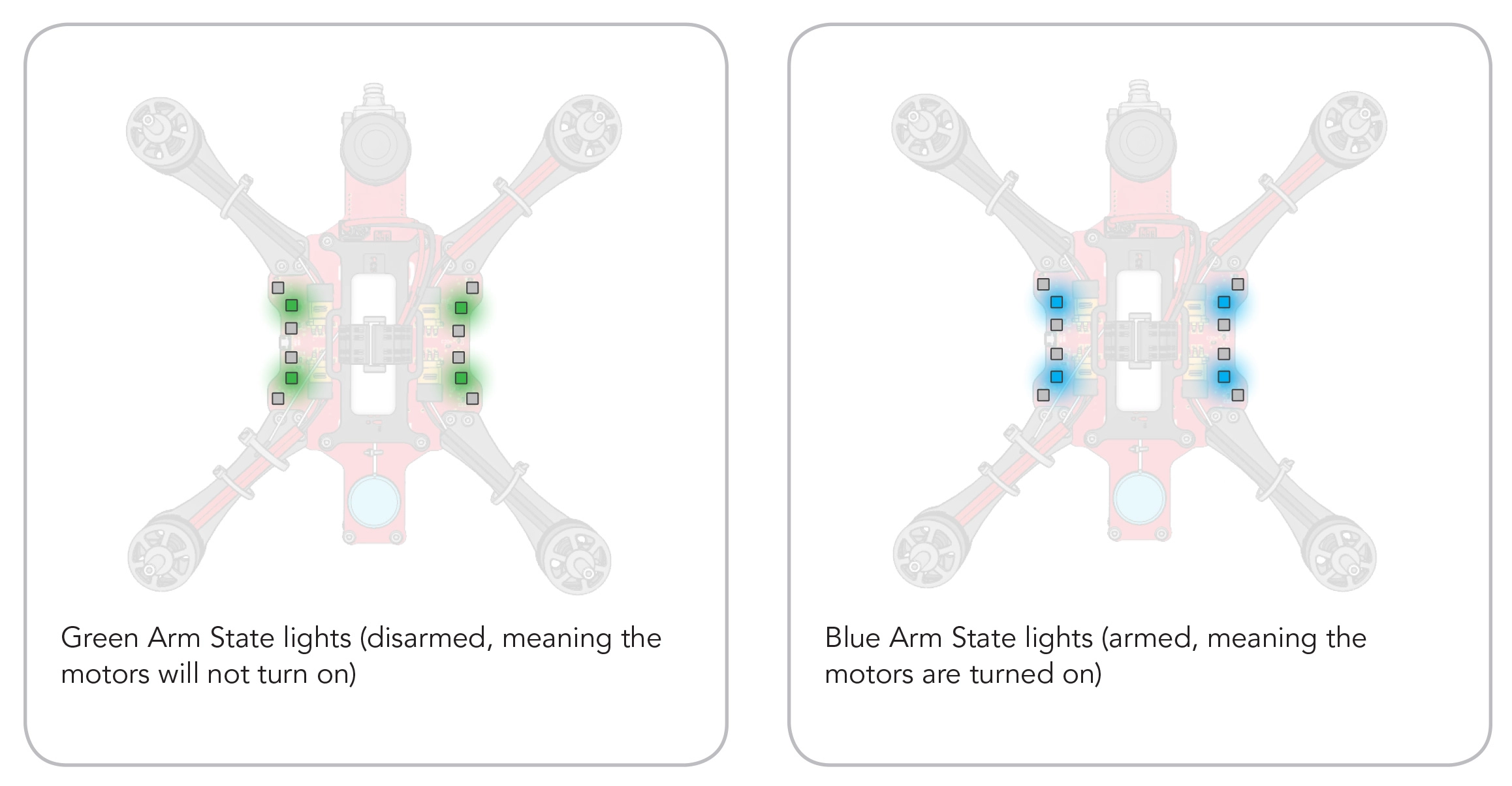
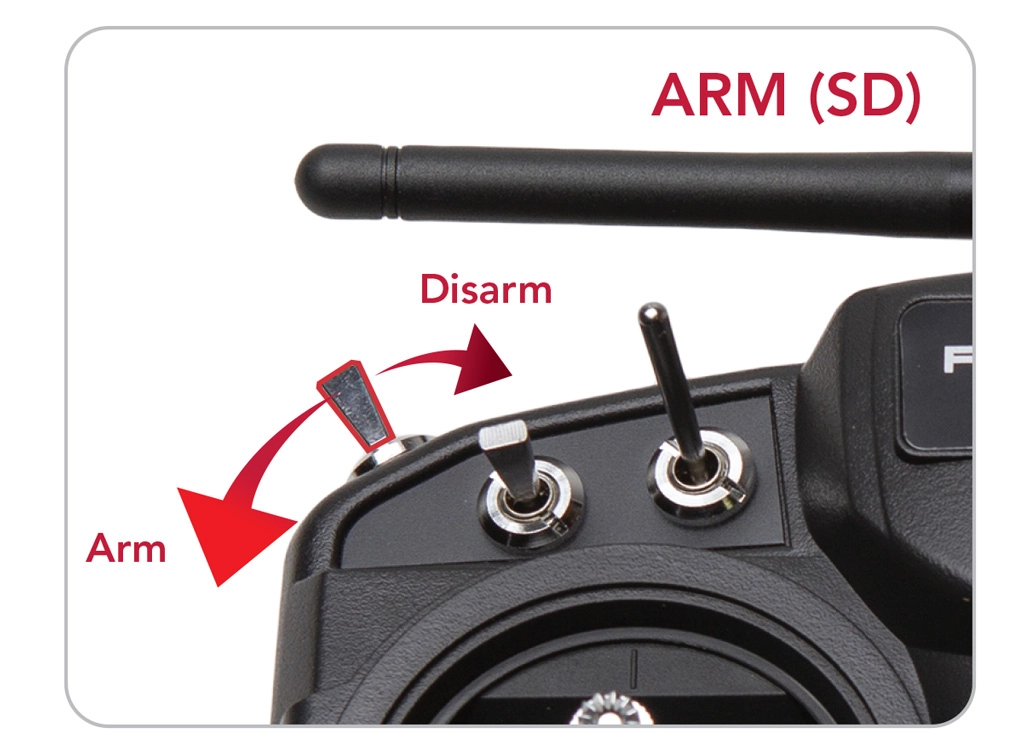
Use the the switch on the Taranis to Arm/Disarm RubiQ.
Green LEDs: Disarmed: When RubiQ is disarmed, the four middle LEDs will show green.
Blue LEDs: Armed: When RubiQ is armed, which can only be achieved after establishing 3D lock, the four middle LED’s will show blue. While armed, RubiQ is ready for flight.
RubiQ’s innermost LEDs communicate how she is currently functioning. If your drone is experiencing issues, the warning lights will flash a particular color. Look to these lights to diagnose any issues your drone might be having.
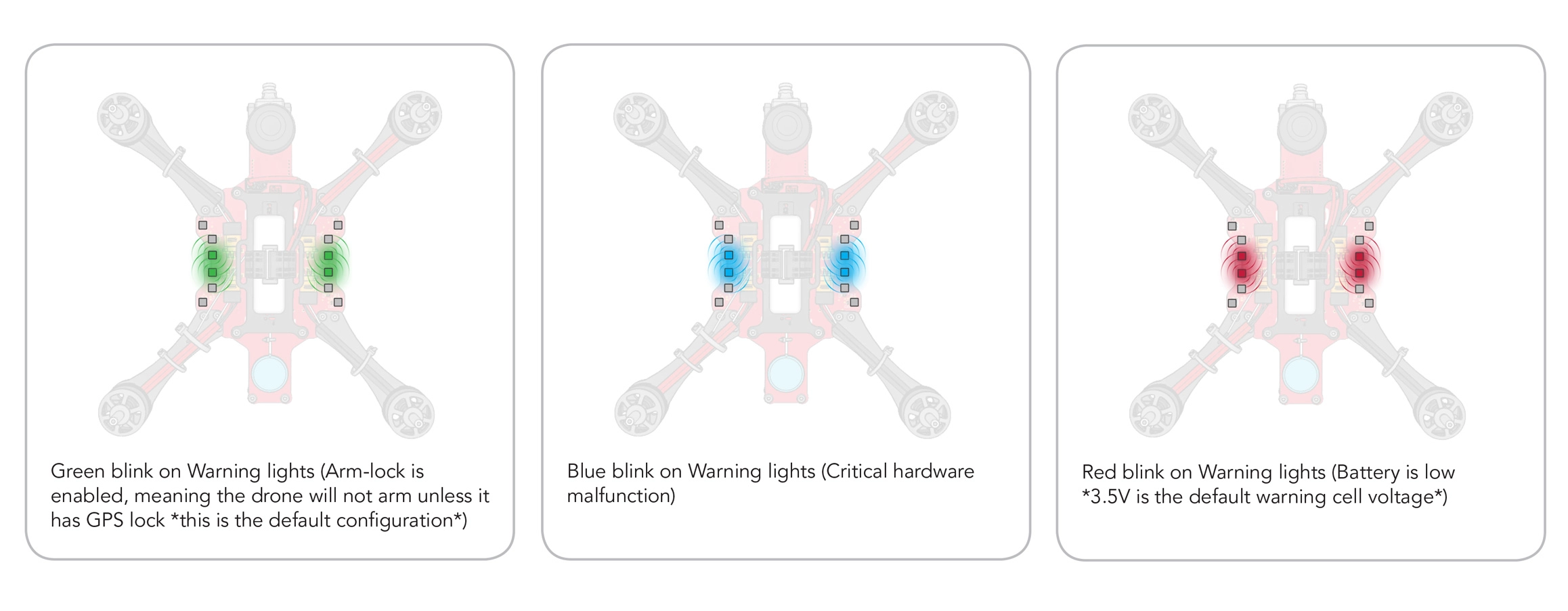
Green LEDs: Arm Lock Enabled
When Arm Lock is enabled, the inner warning lights will flash green. This is good! It means the drone will not Arm unless 3D-lock is established.
Red LEDs: Battery Low
The warning lights will flash Red and be accompanied by a steady beep. This means the battery needs to be charged. Review your accompanying charging instructions to get RubiQ back into the skies.
Look for your warning LEDs to flash red and listen for a steady beep from RubiQ.
Blue LEDs: Critical Hardware Malfunction
If your inner warning lights flash blue, stop flying immediately. Disarm RubiQ, and unplug the battery.
To narrow down your issue, connect RubiQ to the configurator and review the hardware component bar at the top of the page.
If your GPS icon shows red, the issue will generally resolve itself after the battery has been disconnected. If any of the other icons show red, there is likely an issue with the flight controller.
Educators, if the problem persists after reconnecting the battery, please contact us for further assistance.
White Lights & Rainbow LEDs
If your LEDs are exhibiting rainbow colors or have gone completely white, then Houston, we have a problem — your PCB or flight controller is malfunctioning and may need to be replaced.
Educators, please contact us for further assistance.
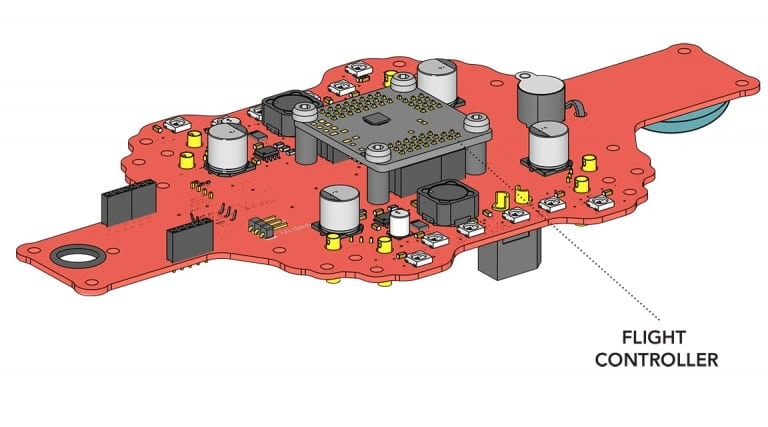
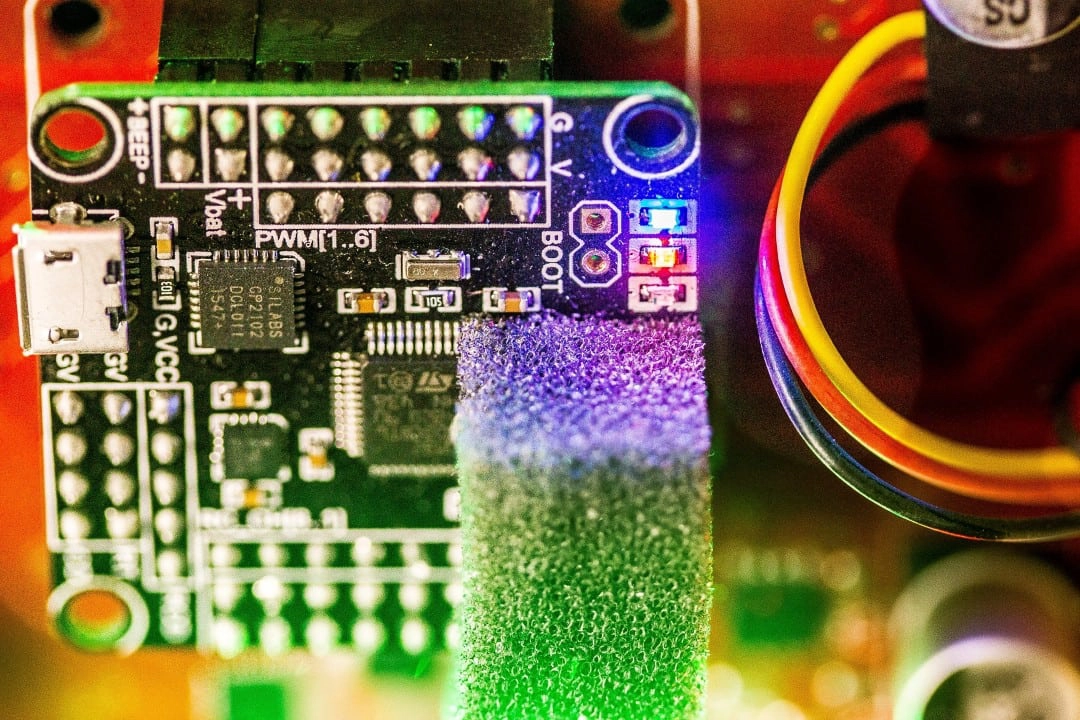
The flight controller is the brains of your drone, and the small LED on the FC’s body is communicating with you.
Blue LED: Power On
When the flight controller is receiving power, the LED will show blue.
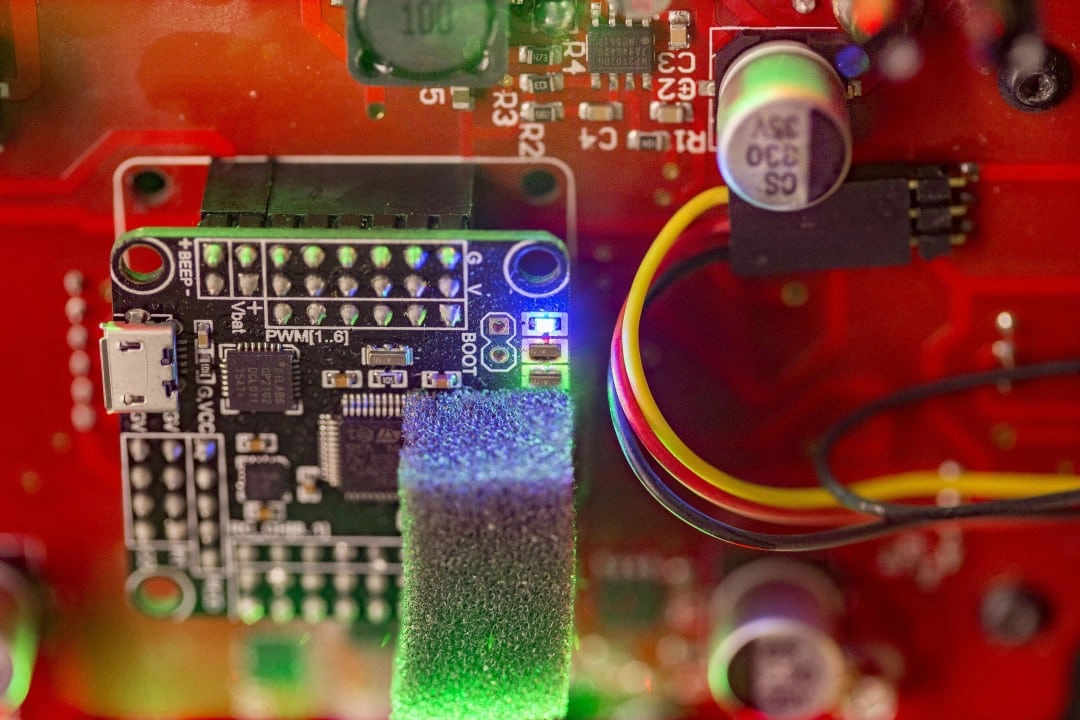
Red LED: Error
If the LED is red, RubiQ is likely not bound to the Taranis or she has lost her connection. Review Step 1 of the Configuration Guide.
RubiQ has a single LED on her receiver which shows her bind status. This LED may light-up as blue or green. Find the small LED light on your receiver to diagnose any radio binding issues.
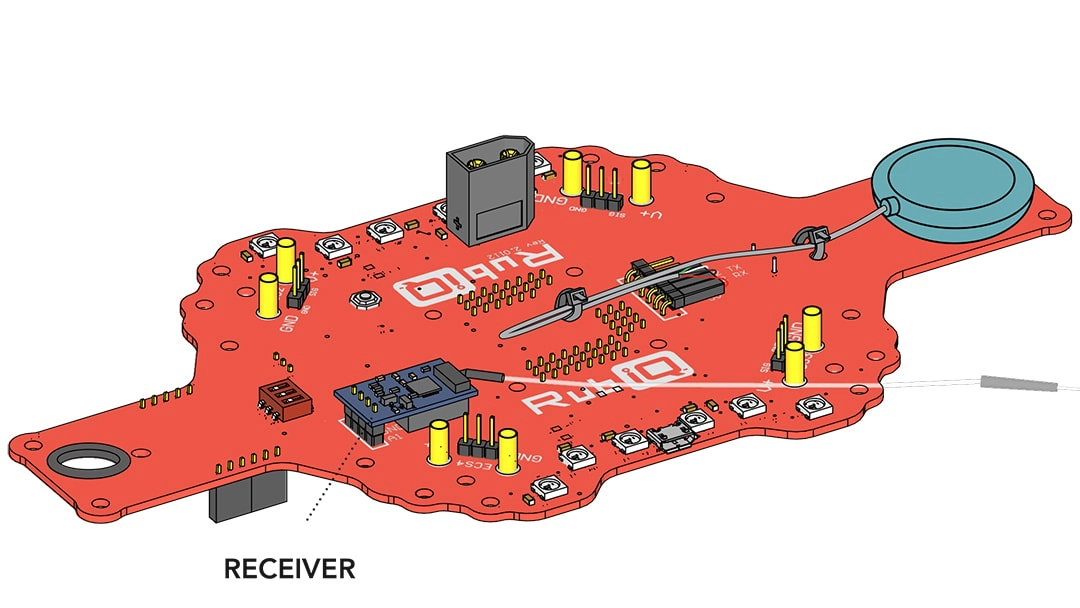
- Blinking LED: Looking for radio controller
- Solid LED: Connected to radio controller
- No LED (with battery plugged in): In binding process
Binding to Radio
At the beginning of the bind process, the receiver LED will blink, as it looks for radio connection.
Once the bind button on the receiver is pressed during the binding process and the battery is inserted, the LED should go dark. This signifies that the receiver has entered bind mode. The LED will remain dark.
After a successful bind, the LED will be solid whenever the radio is powered on and the drone’s battery is connected, showing that the RX is receiving input from the controller.
Not Connected to Radio
When the RX is receiving power but not connected to a radio, the light will blink. This could mean that the drone is bound to a radio that isn’t powered on, or that the drone isn’t yet bound to a radio.